The CPM User Guide is a comprehensive guide that includes “need to know” information about the administration of CPM in pre-K classrooms.
Visit the Circle Progress Monitoring (CPM) Toolkit! This online toolkit has been curated to meet the needs of those working in pre-K settings, and who support a variety of educators and leaders within their regions. This “one stop shop” offers pre-K programs the ability to locate a variety of materials and resources, each tailored to support understanding and implementation of CPM.
From the dashboard, you can navigate everything on CLI Engage! After logging in, you will see a dashboard that includes links to:
View the Quick Start Guide to learn where to find all the tools and resources on the platform.
The Assessment Practice Area is located under the red banner, “Screening, Observation, and Assessment.”
In the assessment practice area, you can:
Comprehensive training for CPM is available in the Online Learning and Professional Development section of CLI Engage. Users can earn certificates for the completion of each course.
When logged in, access the courses directly here: CPM Self-Instructional Assessment Training Course
This page allows you to:
There are several options for uploading data into CLI Engage to create accounts for teachers and other staff, as well as adding children into the system for progress monitoring. Your rosters may be uploaded on your behalf.
Find instructions and more information: Uploading Teacher and Student Data
Circle Progress Monitoring (CPM) was developed by the Children’s Learning Institute at The University of Texas Health Science Center at Houston. CPM is designed to provide teachers with immediate feedback that shows children’s progress in skill areas critical to school readiness. Teachers use information from CPM to inform instructional decision-making for small group and individual lesson planning.
As part of the Children’s Learning Institute’s ongoing efforts to evaluate the performance of the CPM, additional items may be piloted and included in some measures during the school year. These items will be identified for teachers as a “pilot item” and are not included in the student’s score. If you’re looking for something not answered in this user guide, review CPM frequently asked questions or contact our support team.
CPM includes both direct assessment measures and observable checklist measures. Additional details about each measure are available in the sections below. Follow guidance from your district or school leadership on the measures to be administered for your classroom.
| Table 1. CPM Measures | Type | Language | Administration Time |
| Rapid Letter Naming | Direct | English & Spanish | 2.5 minutes (timed fluency task) |
| Rapid Vocabulary | Direct | English & Spanish | 2.5 minutes (timed fluency task) |
| Phonological Awareness | Direct | English & Spanish | 10 minutes |
| Mathematics | Direct | English & Spanish | 5-7 minutes |
| Letter Sound Correspondence | Direct | English & Spanish | 5 minutes |
| Book and Print Checklist | Direct | English & Spanish | 5 minutes |
| Story Retell and Comprehension | Direct | English & Spanish | 10 minutes |
| Social Studies | Direct | English & Spanish | 8 minutes |
| Science | Direct | English & Spanish | 10 minutes |
| Social Emotional Checklist | Observable | English & Spanish | 8 minutes |
| Early Writing Checklist | Observable | English & Spanish | 2 minutes |
| Speech Production and Sentence Skills Checklist | Observable | English & Spanish | 2 minutes |
| Motivation to Read Checklist | Observable | English & Spanish | 2 minutes |
| Approaches to Learning | Observable | English & Spanish | 6 minutes |
| Physical Health and Development | Observable | English & Spanish | 6 minutes |
Total Direct Assessment Time (Student): 58-60 minutes
Total Time to Complete Observables: 26 minutes
Total Assessment Time, All Measures: 84-86 minutes
Learn about how the CPM measures are aligned to the Texas Prekindergarten Guidelines:
CPM is also aligned to the Head Start Early Learning Outcomes Framework: Circle Progress Monitoring-Head Start Alignment
The Circle Progress Monitoring System is a standardized, criterion-referenced measure that relates well to established standardized tests and is sensitive to growth in children’s skills over time. The data used to support the reliability and validity of the Circle Progress Monitoring System came from numerous research studies conducted by the Children’s Learning Institute over a five-year span. These research studies were primarily conducted in preschools and child care centers in Texas, Maryland, Ohio, and Florida. For detailed information about its reliability and validity, please refer to the Circle Progress Monitoring Technical Manual, available upon request.
Benchmarks are the minimum performance levels students are expected to reach by certain points of the year to indicate skill understanding. The CPM Benchmark table displays the cut scores for benchmarks and is helpful in analyzing your data.
Each progress monitoring measure yields a separate score. Some items are parent measures that are broken into sub-measure(s) (e.g., social and emotional). A total score is calculated from the separate sub-measure(s) scores. A total score is an additive number derived from the accumulation of sub-measure(s) scores. Keep in mind, if a sub-measure is missing, then the total score will not be calculated, and users will see a dash as a total score.
While formal benchmarks are scientifically identified through comparisons of sufficiently sized data sets, informal benchmarks are not identified through an examination of data but represent CPM recommendations that can be used to inform instructional decision-making.
While most measures have formal benchmarks, some sub-measures do not have a full range of formal benchmarks. This may be because a sufficient sample size has not been collected to set benchmarks for the task, a specific language, or a specific age range of children assessed with the measure. CLI’s validation efforts are ongoing, and formal benchmarks will be added as they become available. However, CPM provides color coding for several tasks to identify children at risk for academic difficulties based on scoring against an “informal” benchmark for specific age ranges.
If a benchmark exists for the child’s age range, the shade of color presented on reports indicates if it is a formal benchmark (dark shade) or informal benchmark (light shade). Colors in the assessment indicate the level of support needed for 3 to 4-year-old children.
CPM benchmarks are dichotomous: Proficient or Not-proficient. The “Not-proficient” category includes “Monitor” and “Needs Support,” depending on the age group. Monitor was set as an indicator for those students under the age of 4 years who have an additional year in pre-K to reach proficiency.
CPM Benchmark Legend on CLI Engage
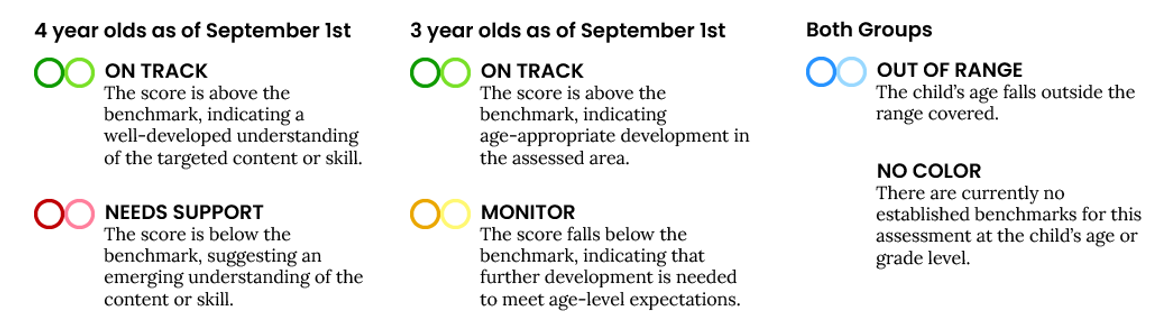
In the CPM benchmarks, the tables display the benchmarks for each measure listed by child age and then if they are considered to be at or meeting the benchmark. For example, the Rapid Letter Naming benchmark for a child who starts the school year at age four increases from 7 at the beginning of the year (Wave 1) to 11 at the middle of the year (Wave 2), and to 14 at the end of the year (Wave 3). If a four-year-old gets 7 or more letter names correct at Wave 1, the score is considered on track and is colored green. If the child scores fewer than 7 correct, the score indicates the child needs support and is colored red.
CPM includes both direct assessments and observable checklists. The direct assessments are administered by teachers to directly measure a child’s skill development. This section details the direct assessment measures and their administration and scoring.
Refer to the CPM Scoresheets for administration resources.
This measure is given to evaluate a student’s ability to identify letters of the alphabet. The child is given a total of 60 seconds of stimulus time to identify letters that appear on the screen. The child must respond within 3 seconds. If 3 seconds elapse without a response, the item is automatically scored as incorrect. A response should be recorded if the child correctly names the letter, if the child says: “I don’t know”, or if the child provides the incorrect response. In other words, record a response should the child correctly or incorrectly name the letter.
The Book and Print Awareness Checklist observes the child’s engagement and awareness of books and print.
Select a book with these features:
Select “Correct” or “Incorrect” for each item on the checklist as you ask the child about the book.
The Letter-Sound Correspondence measure assesses a child’s ability to identify sounds associated with individual letters.
Directions to the child: “We are going to look at some letters and see if you know the sound each letter makes. It’s okay to guess if you don’t know the sounds. Some letters make only one sound and some make more than one sound. Try to tell me at least one sound each letter makes. Ready? What sounds does this letter make?”
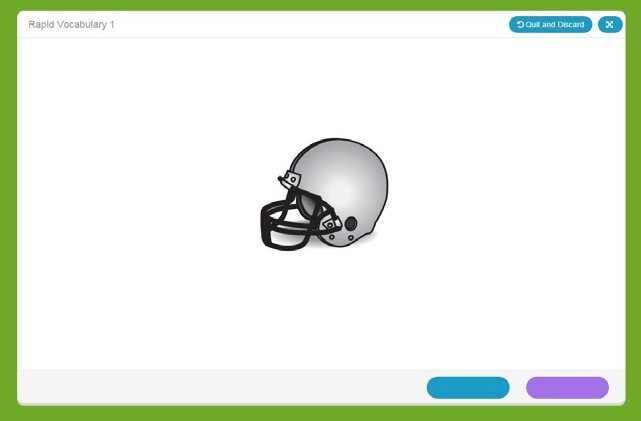
The Rapid Vocabulary measure attempts to gain insight into a child’s expressive vocabulary skills.
Directions: Child is given a total of 60 seconds stimulus time to identify pictures as they appear on the screen. There are different pictures for each wave of the assessment. The Rapid Vocabulary Naming assessment includes 2 untimed warm-up items. Conduct a practice session with the warmup items and give feedback for both practice items:
Correct response: “Good job.”
Incorrect response: “That was a good try, but this is a ball. Let’s try some more. You say, ‘ball.’” Prompt the student by reading the instructions on the “ready” screen of the assessment.
After a picture appears on the screen, the student must respond within 3 seconds. If 3 seconds elapse without a response the item is automatically scored as incorrect. A response should be recorded if the child correctly names the letter if the child says: “I don’t know,” or if the child provides an incorrect response.
Note: A list of acceptable responses can be found on the Rapid Vocabulary Naming scoresheets here: CPM Scoresheets
The Story Retell component assesses a child’s ability to retell a story. In this task, the teacher uses illustrations to provide a stimulus for an oral narrative and then asks the child to retell the story, in their own words, to match the pictures. The teacher scores three story retell items to measure the child’s ability to create a narrative using important elements of narrative macrostructure, including characters, setting, emotions or problems, conjunctions or transition phrases, and an ending or conclusion. Afterward, the teacher asks three comprehension questions that are scored as correct or incorrect.
Directions:
You may help the child by using the following acceptable prompts.
In this measure, teachers provide children with sounds that are combined to form words.
The first five items are multiple-choice items where children are asked to point to (or touch) the word that was blended. The second half of the measure is more complicated. Children are asked to blend phonemes independently, without multiple choices or images.
Teachers should remember to leave a consistent gap of between .75 to 1 second between sounds. The measure has the potential to become significantly easier if the gap is shortened (e.g., by a fourth of a second) and more challenging if the gap is longer than 1 second due to verbal memory demands.
If there is no response, the teacher should feel free to repeat the prompt one more time.
The Initial Sounds sub-measure is an early assessment of emergent phonetic abilities.
For each item, an object is introduced.
This is a ______.
The teacher then asks the child to
Point to the letter that starts with the same sound as ______.
If there is no response, the teacher should feel free to repeat the prompt one more time.
This sub-measure evaluates a child’s ability to identify rhyming words.
The first half consists of multiple-choice items in which children are asked to point to the pictures that rhyme. Teachers should not accept verbal responses for multiple choice questions (e.g., the one on the bottom).
The second half of the measure is more complicated. Children are asked to identify rhyming words independently, without multiple choices or images.
If there is no response, the teacher should feel free to repeat the prompt one more time.
This task requires children to identify parts of words and sentences by clapping.
Teachers will present a word or sentence, and the child will repeat it. Prompt the children to “Clap as you say each word of the sentence.”
Scoring depends on the accuracy of the clap count.
This sub-measure evaluates a child’s ability to recognize sounds contained in words. Pictures are used on two items to help children remember both the target sound (i.e., initial sound in Dog, final sound in Head) and possible answer choices.
The final items ask children to determine if two words are the same or if they have the same initial sound, without multiple choices or images.
If there is no response, the teacher should feel free to repeat the prompt one more time.
The Phonological Awareness measure evaluates a range of phonological awareness skills in an untimed format. Item content is arranged in sections, including syllables, rhyming, letter sounds, sound discrimination, and blending.
Reminder: All phonological awareness sub-measures must be administered to generate the total score.
This task requires children to identify parts of words and sentences by clapping. Teachers will present a word or sentence, and the child will repeat it. Prompt the children: Clap as you say each word of the sentence or each part of the word.
Scoring depends on the accuracy of the clap count.
This sub-measure evaluates a child’s ability to identify rhyming words.
Some items consist of multiple-choice items in which children are asked to point to the pictures that rhyme. While other items of the measure are more complicated. Children are asked to identify rhyming words independently, without multiple choices or images.
The Letters Sounds section assesses a child’s ability to identify and match beginning sounds in words.
For each item, introduce the pictured object:
“This is a ____.”
Then point to each response option, one at a time, and say the sound represented by the letter.
Say the letter sound only. Do not say the letter name.
For example, for B, say /b/, not “B” or “B says /b/.”
Then ask:
“Point to the one that starts with the same sound as ____.”
If the child does not respond, repeat the prompt one time only.
Important: Always provide the sound for each response option. Do not ask the child to name the letters or produce their sounds.
This sub-measure evaluates a child’s ability to recognize sounds contained in words. Pictures are used on items to help children remember both the target sound (i.e., initial sound in Dog, final sound in Head) and possible answer choices.
Items ask children to determine if two words are the same or if they have the same initial sound, without multiple choices or images.
In this sub-measure, teachers provide children with sounds that are combined to form words. Some items are multiple-choice items where children are asked to point to (or touch) the word that was blended. The other part of Blending is more complicated. Children are asked to blend phonemes independently, without multiple choices or images.
Teachers should remember to leave a consistent gap of between .75 to 1 second between sounds. The measure has the potential to become significantly easier if the gap is shortened (e.g., by a fourth of a second) and more challenging if the gap is longer than 1 second due to verbal memory demands.
The Math measure evaluates a range of math-related skills in an untimed format. Item content is arranged in sections, including rote counting, counting objects, shape recognition, shape discrimination, operations, patterns, and math language.
Note: Manipulatives should not be used with math items to ensure standardized administration.
Reminder: All math sub-measures must be administered to generate the total score.
Children are asked to identify and name numbers. Some items ask children to point to (or touch) a specific number, while other items ask children to say the name of a number shown on the screen.
Teachers should read each prompt as written and allow the child to respond by pointing, touching, or responding verbally, depending on the item.
Children demonstrate their understanding of shapes. Some items ask children to name a shape, while others ask children to identify a specific shape or find multiple examples of the same shape.
Teachers should read each prompt as written and allow the child to respond verbally or by pointing to (or touching) the appropriate shape or shapes.
For items that ask the child to identify multiple shapes, follow any additional prompting instructions provided on the item screen. For designated items, if the child identifies only some of the correct shapes, the teacher may prompt one time, “Is that all of them?”
Children demonstrate their counting skills. Children are asked to count aloud and to count groups of objects shown on the screen.
For the rote counting item, allow the child to continue counting until they make an error, and record how high the child was able to count without making a mistake. For other items, read each prompt as written and allow the child to count the objects and provide their answer.
Children are asked to solve simple addition and subtraction problems. The problems describe objects being added to or taken away from a group, and children determine how many objects there would be altogether or how many would remain.
Teachers should read each problem exactly as written and allow the child to provide a verbal response or select an answer, as directed by the item.
Children are asked to recognize and complete patterns. Children look at a sequence and determine what should come next.
Teachers should read each prompt as written and ask the child to point to (or touch) the answer that completes the pattern. The teacher should then select the response indicated by the child.
Children demonstrate their understanding of mathematical language and concepts. Items assess concepts such as capacity, quantity, measurement, order, and position.
Teachers should read each prompt as written and ask the child to identify the object or image that best answers the question. Children may respond by pointing to (or touching) their answer.
The Science measure was designed to measure four disciplinary core ideas in the National Research Council’s (2012) framework for science education including physical sciences, life sciences, earth and space sciences, and engineering and technology applications of science.
Each item contains a scripted question that the child answers by pointing to one of 3 pictures (receptive task). Follow the prompt on the screen and record the response by clicking or touching the item the child selected as the answer.
This is an untimed measure, but if the child does not provide a response after about 10 seconds, move on to the next item (e.g., “OK, let’s try another one”) by clicking an incorrect response. If no response after about 5-10 seconds: “It’s okay to take a guess.”
The Social Studies measure was designed to measure topics addressed in the Head Start Early Learning Outcomes Framework and the Texas Pre-Kindergarten Guidelines, including Self, Family, and Community; People and the Environment; and History and Events.
Directions: Each item contains a scripted question that the child answers by pointing to one of 3 pictures (receptive task). Follow the prompt on the screen and record the response by clicking or touching the item the child selected as the answer.
This is an untimed measure, but if the child does not provide a response after about 10 seconds, move on to the next item (e.g., “OK, let’s try another one”) by clicking an incorrect response.
Teacher Prompt:
The Observables checklists are designed to assess growth in child behaviors that can be easily observed during day-to-day interactions between teachers and preschool students. Understanding these domains is important for early childhood educators interested in understanding the development of the whole child across cognitive and social skills.
Teachers can view the CPM Observables checklists before scoring in CLI Engage.
The Observables should be based on observances and documentation such as anecdotal notes, portfolios, cumulative records, and other sources as recent as three weeks prior to assessment. Teachers often document the following types of notes related to the behaviors: the date, the setting (e.g., recess, library center, block center), whether support or scaffolding from the teacher or another child was needed, and how often the behavior occurs.
Mark your observations according to the following scale. CLI Engage automatically scores the teacher’s responses and applies the benchmark, as applicable.
Captures the ability to write letter-like forms or real letters, understand that writing moves from left to right, engage in writing activities within centers, and write in response to literature.
Captures skills in positive social behaviors, classroom community and safety, emotional and behavior regulation, self-care, attention, and approaches to learning.
Captures student initiative and curiosity, flexibility, and art, creativity, and dramatic play.
Includes items that capture developmental progress in three categories: fine and visual motor skills, gross motor skills, and understanding healthy behaviors (e.g. hygiene).
Captures the ability to vocalize, pronounce, and discriminate among sounds of the alphabet and words, as well as the use of grammar to convey meaning.
Observation of a student’s interest and enthusiasm for books and reading.
CLI Engage allows you to set your own assessment schedules; this is a local leadership decision. We normally suggest that beginning-of-year (Wave 1 on CLI Engage) assessments be conducted starting in mid-September and ending by mid-October. Middle-of-year (Wave 2) may be around mid-January to mid-February. Administration at the end-of-year (Wave 3) can be around mid-April to mid-May. You can also determine which of the available measures, beyond the required measures, may be more useful to meet your instructional objectives.
Assessment Windows Lock Feature
The optional “lock” feature allows LEAs to limit access to specific administration windows for teachers. Administrators can set testing dates for assessments and waves. This feature ensures that teachers conduct assessments during the correct waves and within designated testing windows. Learn more about this tool here: Assessment Lock Feature How-to Guide
Utilize CLI’s resources for alternative administration functionality and protocols for CPM. Visit our detailed webpage to access teacher’s guides, webinars, and visual schedules to support teachers as they administer assessments remotely: Remote Assessment Administration
The offline assessment feature can be used to assess students when an internet connection is not available at the time of administration. The offline feature for CPM can be accessed from the assessment practice area (for practicing the offline feature) or directly from the class view in CPM (when conducting the assessments): CPM Offline Assessment
The Exclude button is used to “exclude” a student OR the entire class from a specific measure or sub-measure. The completion report takes this exclusion into account when tabulating completion rates. For example, in a class of 10 students, if 2 are excluded and the remaining 8 are measured, the completion report will indicate 100%. If the students are not formally excluded using this feature, the report would indicate an 80% completion rate. Anyone with access to a class can exclude measures.
If all students are excluded from a measure (i.e., the measure is not being administered to any student), it is more efficient to use the Exclude All button that appears just below the measure name, rather than excluding each individual child. This feature excludes the entire class from a measure or sub-measure with one click. In this case, the “Launch” icon is replaced by a gray square preventing the measure from being administered to the student. This can also be done by an administrator, but would have to be set for every class (i.e., it cannot be performed school-wide). In this case, the teacher would not see the measures that the administrator had excluded.
If a teacher excludes all students from a measure, it is helpful to also remove it from view using the Hide/Display Measures feature. This makes it easier to locate measures you are actually assessing without having to scroll through the full list of available measures. It is important to note that the “Hide/Display Measures” button hides a measure from view for navigational purposes only. Hiding a measure does not affect data or reporting. Hiding is set by each user, and the system remembers the user’s preference; therefore no user can hide measures for another user.
For direct measures, the teacher will indicate a child’s correct or incorrect response for each item by clicking the buttons on screen or using the keyboard arrow keys:

For the Rapid Letter Naming and Rapid Vocabulary Naming measures, the teacher cannot correct scoring errors. If a scoring error is made, the assessment must be invalidated. To invalidate an assessment, click the “Invalidate this Assessment” button on the results screen.
Once an assessment has been completed and you have clicked “Done” you will not be able to invalidate. On CLI Engage, only administrators have the ability to invalidate student assessment scores. Invalidating a student score will delete the record of a student’s assessment and enable the teacher to reassess the child. Scores must be invalidated per child, per measure. Invalidated scores cannot be retrieved, so score invalidation should be done with utmost caution. For assistance, please submit a help ticket.
Score invalidation examples:
For some direct assessments, the child may see a celebratory completion page after completing all items.
When finished, you may dismiss the child and click “Next” to see the results.
The teacher’s results screen includes:
A variety of reports are available after completing CPM measures to guide data-based decision-making and instructional planning. Reports available for teachers include:
Additional reports are available at the school and district level on CLI Engage to monitor and review completion and child growth, as well as ensure accurate state reporting.
Learn more about the various reports available for child progress monitoring:
CLI’s family engagement resources make the most of procedures you likely already have in place, such as progress monitoring, homework, parent-teacher conferences, and open houses. CLI advocates a new focus for these efforts: supporting families in better understanding children’s development and engaging in fun, developmentally appropriate activities that not only build skills but strengthen the bonds between family members.
The CLI Engage Family Engagement Toolkit make the most of procedures you likely already have in place, such as progress monitoring, homework, parent-teacher conferences, and open houses. CLI advocates a new focus for these efforts: supporting families in better understanding children’s development and engaging in fun, developmentally appropriate activities that not only build skills but strengthen the bonds between family members.
Teachers using CPM can share student reports with families by printing them or providing a PIN for online access. Teachers can also send families activities that are designed to support skill development at home.
Student Report Resources:
Implementation Guide (available in English and Spanish) includes the following topics:
Helping Families Understand Their Child’s Assessment Results:
Teachers can collect valuable information on their student’s development by sharing these forms with families and asking them to give feedback about their child. Each form is aligned to the CPM measures to support the integration of family information into instructional planning. Family Observation Forms are available in English and Spanish.
Many studies have shown that families and teachers working together to support children’s development can lead to better outcomes for children. This collection includes fun, easy activity ideas that families can do together to help support important school readiness skills for children ages 0-6. Learn more here: Circle Activity Collection: Family
Teachers can also share family activities directly with families via email throughout the school year. This feature is accessed through your class small group report for CPM. After uploading parent email addresses, teachers can select and share activities aligned to each child’s areas for skill development so children are supported at school and home.
The following accommodations may be helpful for administration of CPM for children with disabilities. Please submit a help ticket to reach our education advisor team for additional assistance.
Circle Progress Monitoring was not designed or evaluated for use for children with disabilities (e.g., language delays, Autistic Spectrum Disorders, or Intellectual Disabilities). Additionally, it is a progress monitoring assessment, not a diagnostic test. Therefore, it should not be used to make determinations about whether or not children should be enrolled in Special Education. Data from Circle Progress Monitoring could be used to help school officials make a determination about whether or not a child should be referred for a more comprehensive evaluation. For instance, if a child does not socially engage with peers or teachers, is not able to follow simple verbal instructions (even though the teacher is speaking in the same language that is used in the home), AND is not able to complete more than a few progress monitoring items, this information can be presented to the school administration as documentation that this the child would benefit from a more comprehensive evaluation. To date, there is not enough information to allow us to determine if progress monitoring could effectively be used as part of an Individualized Educational Plan (IEP) for young children.
As those who work with children with developmental disabilities understand, assessment is a complex undertaking. In terms of general guidelines, administrators, teachers, diagnosticians, and assistive technology specialists would be encouraged to consult TEA’s Accommodations for Students with Disabilities which can be located on TEA’s website: Special Student Populations
Whenever possible, decisions about accommodations should be made by the ARD committee based upon the eligibility criteria documented in the student’s Individual Education Plan (IEP). For students receiving section 504 services, accommodation decisions should be made by the section 504 committee based on their eligibility criteria that is documented in the students Individual Accommodation Plan (IAP). As a general rule, teachers and administrators should allow accommodations for children in a manner that is consistent with their educational programming. For instance, accommodations that are routinely and effectively used within the classroom setting should be allowed when students complete Circle Progress Monitoring. For instance, children with hearing impairments who use amplification devices should be allowed to use amplification devices during administration of all progress monitoring subtests. Other appropriate accommodations that could be utilized in working with children with disabilities might include individualized structured reminders, projection devices, signed administration, math manipulatives, braille, and extra time.
Districts or programs using Circle Progress Monitoring should understand that appropriate accommodations should be encouraged. However, normative information about the performance of children who complete measures using accommodations is not available.
It is appropriate to use regular progress monitoring with students who have expressive communication difficulties that are not accompanied with a significant developmental disability. These students require the use of an alternative communication system to respond to others. An alternative communication system might be a switch or keyboard that the student operates and that produces a voice output response (for example “yes/no”). A system that allows the student to respond by pointing to the symbol or picture to indicate an answer (“yes/no” or a “1, 2, 3, or 4”) is also acceptable.
Application
Students with low vision or blindness need more time to process information and provide a response. Refer to your school district’s policies and specialists regarding how much time the student needs to complete the sub-measures as well as the amount of wait time the student needs. For example, braille readers have been found to need twice as long.
Some PDF versions of the Circle Progress Monitoring items can be requested by district administrators. To request a PDF version, submit a help ticket.
Rapid Vocabulary: If the student’s IEP provides for assessment through a system that enhances images (such as projection to enlarge), display the items and allow two times the amount of response time.
Rapid Letter Naming: Provide letters in braille and allow two times the amount of response time.
Math Shape Naming, Shape Discrimination, Counting Sets: Administer the measure untimed and substitute objects for pictures.
Math Number Discrimination, Number Naming: Provide numbers in braille. Administer the assessments using the extended time accommodation.
Click the “Exclude” button on the student summary page to exclude the student from phonological awareness measures.
Allow the directions to be reworded in any format or language necessary (including sign language) to enable the student to understand the task(s) by repeating in English, using the native language, etc. No other part of the test may be reworded or translated. This rewording and/or translation of directions would not go beyond the scope and meaning of the written directions.
Before the test, translate each screen of directions into Sign Language or another language. Print the translation.
At administration time:
The CLI Engage Help Center provides resources and services designed to help you! Search for step-by-step guides and contact our support team.
This document was last modified on: August 27, 2026